Element Setup Guide

Desktop / Web (Browser) Setup Guide
1. Initial Login
- Open your browser and go to https://chat.triaplc.com.
- Click Sign in.
- Enter your username and password, then click Sign in.
- Note: For Desktop app or Mobile app login, use https://matrix.triaplc.com in the homeserver/matrix field.
2. Enable Backup & Encryption
- Once logged in, enable backup:
- Go to Settings → Encryption.
- Turn on Key storage.
- Click Get recovery key.
- Save your recovery key securely (write it down or store in a password manager). This is shown only once and is required for logging in on other devices.
- Confirm the key when prompted to finish setup.
3. Enable Notifications
- Return to the dashboard.
- Allow notifications when the pop-up appears.
- Windows users: Go to Windows Search → type Notifications & actions → open settings → enable notifications for the browser (Chrome or Edge).
4. Install as Desktop App (PWA)
- Windows: Use Microsoft Edge.
- Mac / Ubuntu: Use Chrome.
- Open https://chat.triaplc.com in the browser.
- Click the Install Element button (in the address bar or menu).
- Install the app.
- Pin it to Taskbar / Dock, add to Start menu, and enable Auto-start on login.
5. Auto-Start Configuration
- Windows:
- Open Task Manager → Startup apps.
- Right-click Mseedge_proxy (or similar) and Enable.
- Ubuntu:
- Install GNOME Tweaks.
- Open GNOME Tweaks → Startup Applications → Add Element.
- Mac:
- Open Element → Right-click icon in Dock → Keep in Dock and Open at Login.
6. Testing the Setup
- Ask a colleague to message you (they can search using the + button and prefix your name with @).
- Verify you receive the message and notification.
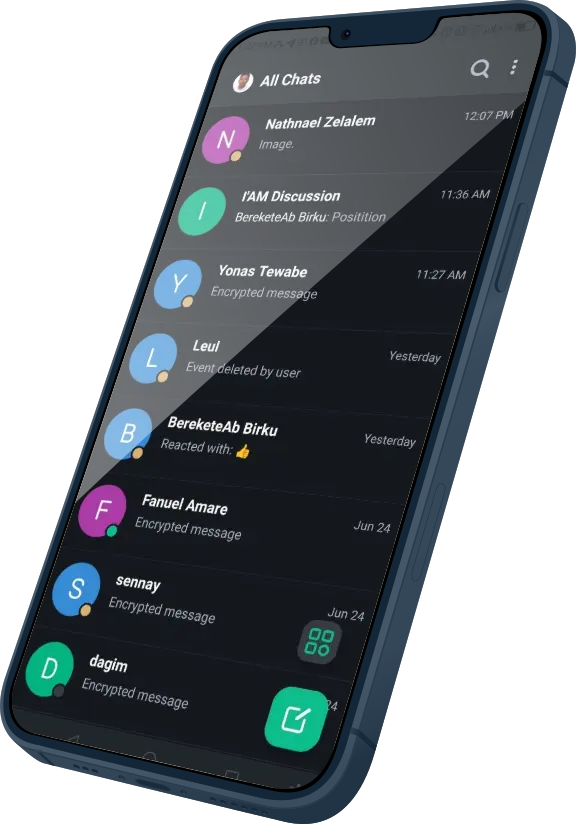
- Example: Incoming chats from colleagues (e.g., Mr. Yohanes) should appear in the app.
Contact for questions: Reach out to Muluhabt.
Mobile App Setup Guide
1. Installation
- Go to Google Play Store (Android) or App Store (iOS).
- Search for “Element” (Element Messenger).
- Install the app.
2. Login
- Open the Element app.
- Enter the server address: https://matrix.triaplc.com.
- Follow the on-screen instructions to enter your username and password.
- Log in.
3. Enable Notifications
- Android:
- Open Settings app.
- Tap Notifications → App settings.
- Find Element (use “All apps” if needed).
- Turn on notifications.
- iPhone (iOS):
- Open Settings.
- Go to Notifications.
- Select Element.
- Turn on Allow Notifications.
4. Usage Tips
- You can now use the app for chats, group discussions, and notifications on the go.
- Use the same recovery key (from desktop setup) if restoring on a new device.
Notes for Both Platforms:
- Always keep your recovery key safe.
- Enable notifications for reliable real-time messaging.
- Test by sending/receiving messages with colleagues using the @username search.
Making the difference.
Our mission is to give customers the best experience.
Extensive documentation & guides, an active community,
24/7 support make it a pleasure to work with us.
Rating
There are no comments for now.
to be the first to leave a comment.